Tech on Dicas UK | Technology Tips, Smartphone, Android and Digital Guides
Technology is supposed to make life easier. Most of the time, it does. We use our phones to check the weather, pay for things, find directions and keep in touch with family. A laptop can be the main tool for work or university, while a Smart TV gives us something to watch at the end of a long day.
Then something stops working.
The phone that was perfectly fine last week suddenly feels slow. A notification appears saying there is hardly any storage left. The home Wi-Fi works well in the living room but struggles upstairs. An Android app keeps closing, or a Smart TV refuses to connect to the network.
These situations are common, and they can be surprisingly annoying. The difficult part is not always fixing the problem. Often, it is figuring out what is actually causing it.
That is the approach behind tech on dicas uk. Instead of treating every technology problem as a complicated technical issue, the idea is to look at the everyday things that people can check themselves. Sometimes the answer is a setting that needs changing. Sometimes an old app is responsible. In other cases, the problem has nothing to do with the device at all.
This guide brings together practical information about smartphones, Android, Smart TVs, Wi-Fi, broadband and other everyday technology. The aim is to make those subjects easier to deal with, particularly when you would rather try a few sensible checks yourself before looking for more complicated solutions.
Tech on Dicas UK: Practical Technology Tips for Everyday Problems
Not every technology problem needs a complicated solution.
Take a phone that has become sluggish. Before changing advanced settings, have a look at how much storage is available. If the phone is almost full, removing a few large videos or unused apps may make more sense than changing settings you do not fully understand.
The same applies to a home network. If Wi-Fi has suddenly become unreliable, moving the router around or restarting it may be worth trying before assuming that the broadband service itself is at fault.
These small checks are the sort of technology tips that are easy to overlook because they sound almost too obvious. Yet they can save time when something goes wrong.
There is another advantage to dealing with a problem this way: you learn a little about your own devices. After a while, you begin to recognise the difference between a storage problem, an app problem and a connection problem.
Why Technology Tips Should Be Easy to Follow
A technology guide should not make a simple problem sound more difficult than it really is.
If someone wants to free up space on a phone, they need to know where to look and which files are generally safe to remove. If the problem concerns Wi-Fi, they need to know whether the issue affects one device or the entire household. And if a setting involves privacy or personal information, the consequences should be explained before anything is changed.
That is more useful than giving someone a long list of settings and expecting them to work everything out alone.
Before deleting anything important or resetting a device, make a backup. This is especially important for photographs, documents, contacts and other files that would be difficult to replace.
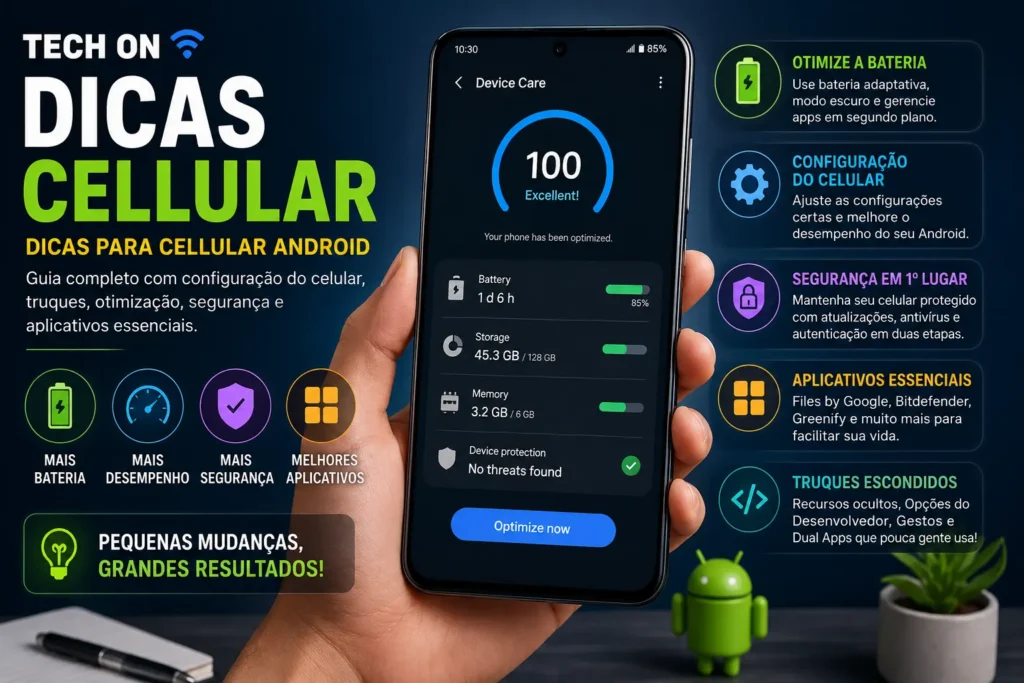
Smartphone Tips: Make Your Phone Faster and More Useful
A smartphone collects a surprising amount of digital clutter.
There may be hundreds of photographs, old WhatsApp media, downloaded documents, screenshots and applications that were installed for a particular reason and then forgotten. None of this is necessarily a problem on its own. Over time, though, it can leave less room for the things you actually use.
If your phone feels slower than it used to, take a few minutes to see what is happening.
Open the storage section and look at the categories taking up the most space. You might discover that videos are responsible for most of it. On another phone, applications or downloaded files might be the main culprit.
Do not delete everything simply because it appears unnecessary. Go through larger files first and keep anything you may want later.
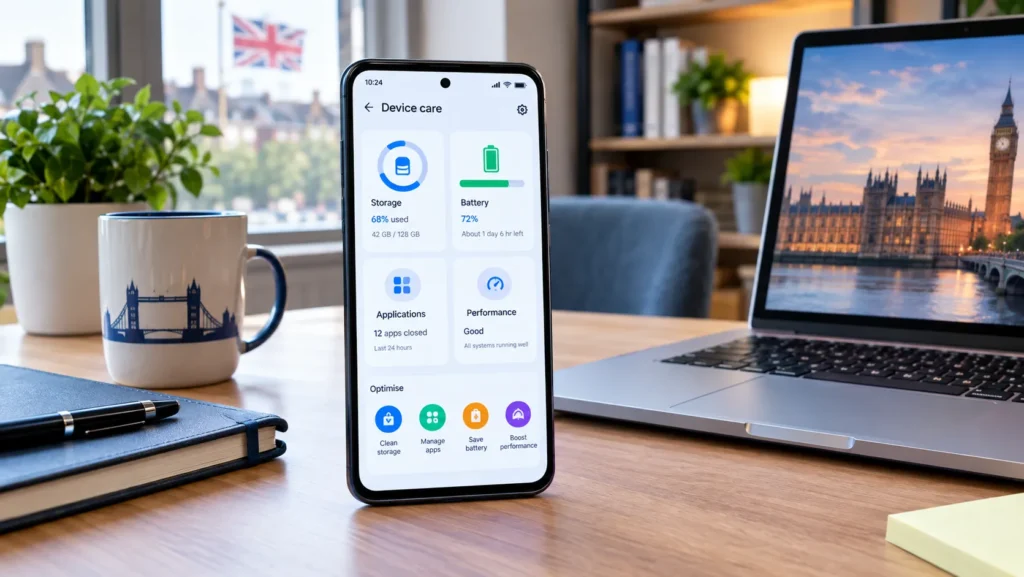
Apps deserve a similar check. If you have not opened an application for several months, ask yourself whether you still need it. Removing unused apps can free storage and also reduce the number of services running on the phone.
Battery usage can provide another useful clue. Your phone’s battery settings normally show which apps have been using the most power. If one application is consuming considerably more than you expected, investigate it before assuming that the battery itself has failed.
How Can I Make My Phone Faster?
There is no single setting that magically makes every phone faster. A better approach is to work through a few straightforward checks.
2. Check the storage.
Look for large videos, old downloads, duplicate photographs and other files that are no longer useful.
4. Check for updates.
Look at the official app store for application updates and check the phone's system settings for available software updates.
6. Review background activity.
Some phones allow you to restrict background activity for individual applications. Be selective, because restricting everything can affect notifications and other useful features.
1. Restart the phone.
If the device has been running continuously for a long time, a restart can clear temporary processes and resolve minor glitches.
3. Remove apps you no longer use.
Keep the applications you actually need and remove the ones that have been sitting untouched for months.
5. Look at battery usage.
A badly behaved application may be using more resources than expected. The battery section can help identify it.
7. Take a look at widgets and visual effects.
If your phone has too many active widgets or offers animation settings, reducing unnecessary extras may make the interface feel cleaner.
The names and locations of these options will depend on the phone. A Samsung Galaxy, Google Pixel and other Android devices do not necessarily organise their settings in exactly the same way. iPhone also uses a different system.
So, if a guide tells you to open a particular menu and you cannot find it, do not assume that your phone is faulty. The option may simply have a different name or location on your model.
There is one more test worth doing when a phone appears to be slow. Check whether the problem happens only when you are online.
For example, if a webpage takes ages to load but the phone’s menus respond normally, the handset may be fine. The Wi-Fi or mobile connection could be responsible. Try switching between Wi-Fi and mobile data, or test another network if one is available.
That small experiment can tell you more than changing several settings at random.
This is where tech on dicas uk takes a practical approach: find the symptom, check the most likely causes and make one change at a time. You do not need to become a technician to understand what your phone is doing.
The same principle works across other devices too. Whether the problem involves Android, a Smart TV, Wi-Fi or a laptop, knowing what to check first often makes troubleshooting much less frustrating.
For everyday users, useful technology tips are not about knowing every technical term. They are about knowing what to look at, what to leave alone and when a simple fix is enough.
That is ultimately what tech on dicas uk is intended to provide: straightforward technology guidance that fits into normal life rather than making everyday problems feel like a technical exam.
Android Tips: Settings, Apps and Hidden Features
Android devices offer a wide range of settings and features. Depending on the manufacturer, you may find additional options on phones from Samsung, Google and other Android brands.
Tech on Dicas UK can cover practical Android solutions such as updating the operating system, managing applications, improving battery life and protecting personal information.
Android Settings Worth Checking
Start with the main Settings application. Review storage, battery, notifications, permissions and software updates.
If Android is running slowly, check the battery and storage sections first. An application that is using an unusually high amount of battery may deserve further investigation.
You should also review app permissions. Applications do not always need permanent access to your location, microphone, camera or files. Where Android provides the option, consider limiting permissions to situations where they are actually required.
Another useful step is checking for system updates. Android updates can contain security fixes, bug corrections and compatibility improvements.
How to Free Up Space on Android
When Android storage is nearly full, begin by looking for large files.
Videos are often responsible for a significant amount of occupied storage. Downloaded media, screenshots, old installation files and unused applications can also accumulate over time.
Google Play Store can help you manage installed applications, while the phone’s built-in storage tools can show which categories are taking up the most space.
Avoid deleting system files simply because they appear unfamiliar. If you do not know what a file does, research it before removing it.
iPhone and Apple Tips for Everyday Users
Android is not the only major smartphone platform. iPhone users can also encounter problems involving battery life, storage, applications and software updates.
If an iPhone becomes slow, check available storage and install the latest compatible iOS update. Review battery usage to identify applications that consume significant energy.
For storage problems, open the iPhone storage section and review the applications and media using the most space. You may discover that old videos, downloaded content or rarely used applications are taking up more storage than expected.
Apple also provides built-in privacy controls that allow users to review application permissions and control access to certain personal information.
The same basic principle applies across mobile platforms: understand the cause of a problem before making major changes.
Technology Tips for Smart TVs and Home Entertainment
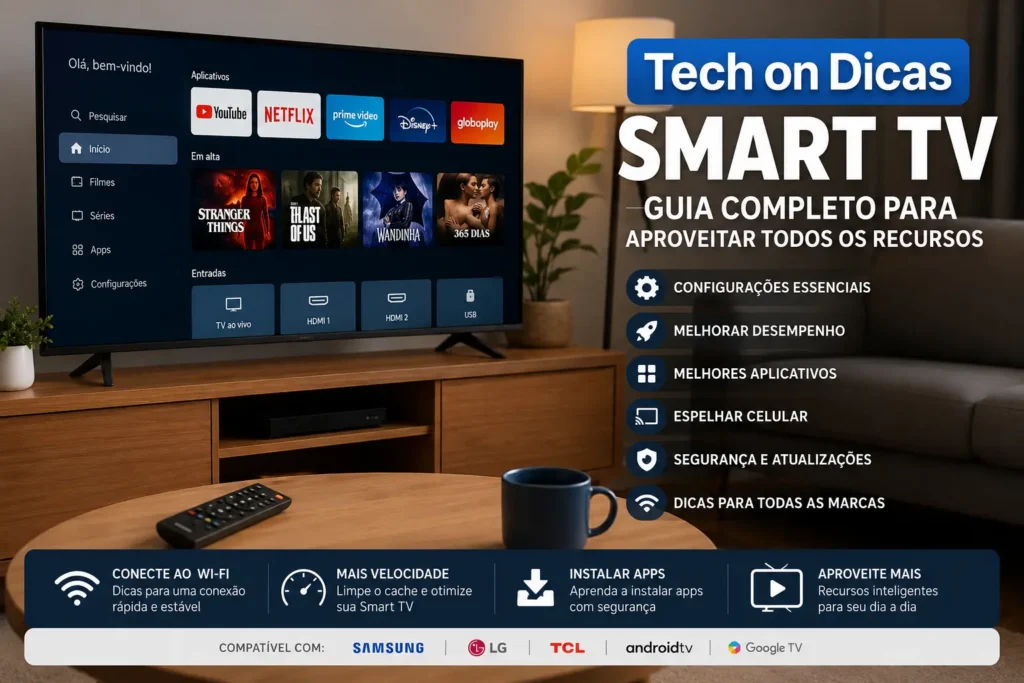
Smart TVs are now common in UK homes, providing access to streaming services, applications and connected devices. Samsung, LG, Google TV and Android TV platforms offer different menus and features, but many common problems have similar causes.
A Smart TV that is slow may have too many applications, limited available storage or outdated software. A TV that cannot connect to the Internet may instead have a Wi-Fi or router problem.
How to Connect a Smart TV to Wi-Fi
Open your television’s network settings and select your home Wi-Fi network. Enter the correct password and wait for the connection to complete.
If the TV cannot connect, restart both the television and router. Check whether other devices in your home are connected successfully.
If your phone and laptop work normally but the TV does not, the issue may be specific to the television. If every device has lost Internet access, check the router and broadband connection.
This simple troubleshooting process can save time because it helps determine whether the problem is with the device, the Wi-Fi network or the broadband service.
Wi-Fi and Broadband: Improve Your Home Connection
A reliable broadband connection is important for streaming, online meetings, gaming and everyday browsing. Yet slow broadband does not always mean that the Internet service itself is the problem.
The router’s position can have a major effect on wireless coverage. Keep it in an open, reasonably central location rather than hiding it inside a cabinet.
Walls, floors and other obstacles can reduce Wi-Fi signal strength. Distance from the router can also affect performance.
How Can I Improve My Wi-Fi Speed?
Try these basic steps:
- Restart the router.
- Check whether several devices are using the connection simultaneously.
- Move the router to a more suitable position.
- Test the connection close to the router.
- Check for broadband service problems.
- Update router firmware when appropriate.
- Use Ethernet for devices that need a more stable connection.
- Consider whether your current broadband package meets your household’s needs.
A broadband speed test can help identify whether the connection is performing differently from what you normally expect.
Tech on Dicas UK can also help users understand the difference between broadband speed, Wi-Fi signal strength and mobile data performance. These are related but different aspects of connectivity.
Mobile Networks, 4G, 5G and Mobile Data
Mobile connectivity is another important part of modern digital life in the UK. Users may rely on 4G or 5G for browsing, navigation, streaming and communication.
Poor mobile signal can be caused by location, building materials, network coverage or temporary network issues.
If mobile data is not working, first check that mobile data is enabled. Then verify whether the phone shows a suitable network signal. Restarting the device can also resolve temporary connection problems.
For people using an eSIM or physical SIM card, network settings should be checked carefully before making major changes.
When comparing 4G and 5G, remember that speed is not the only factor. Coverage, network congestion, device compatibility and location can all affect the real-world experience.
Digital Security Should Be Part of Every Tech Guide
Technology advice should not focus only on speed and convenience. Security is equally important.
Use strong and unique passwords for important accounts. Enable two-factor authentication where available and avoid entering account information through suspicious links.
Phishing messages can imitate banks, delivery companies, retailers or online services. Look carefully at unexpected emails and text messages before clicking links or providing personal information.
A password manager can make it easier to use unique passwords without having to remember every one individually.
Tech on Dicas UK will also cover practical online security topics, including phishing, malware, password protection, smartphone security and personal data protection.
What This UK Technology Guide Covers
The goal is to create a practical technology resource covering the problems people actually encounter.
Future guides can explore:
- smartphone tips and tricks;
- Android settings and hidden features;
- iPhone and iOS advice;
- useful mobile applications;
- Smart TV setup and troubleshooting;
- Chromecast and Google TV;
- broadband and Wi-Fi problems;
- UK mobile networks and 5G;
- Windows 11 and PC troubleshooting;
- cybersecurity and online privacy;
- useful AI tools;
- ChatGPT tips and guides;
- digital services and everyday technology solutions.
From a slow phone to an unreliable Wi-Fi connection, the most useful solution usually begins with identifying the problem correctly. Once the cause is understood, the right fix becomes much easier to find.
Tech on Dicas UK: Windows 11, Apps, Smart TV, Broadband and Cybersecurity
In Part 1, we covered practical smartphone, Android, iPhone, Smart TV, Wi-Fi and mobile network advice. This second part of tech on dicas uk moves into another important area of everyday technology: Windows 11, PCs, laptops, applications, home broadband, Smart TV connectivity and online security.
Modern devices are powerful, but they can still develop everyday problems. A laptop may become slow, Windows may take longer to start, an application may stop responding, or a Smart TV may suddenly lose its Internet connection. Understanding the basic troubleshooting process can often help you identify the cause before taking more complicated steps.
The focus here is simple technology tips that are useful for people using technology at home, at work or while studying.
Windows 11 Tips for a Faster and More Reliable PC
Windows 11 is used across many desktop computers and laptops. Like any operating system, it can become less responsive when storage is limited, too many applications start automatically or background processes consume system resources.
Before installing third-party cleaning software, check the tools already available in Windows.
Windows 11 Settings Worth Checking
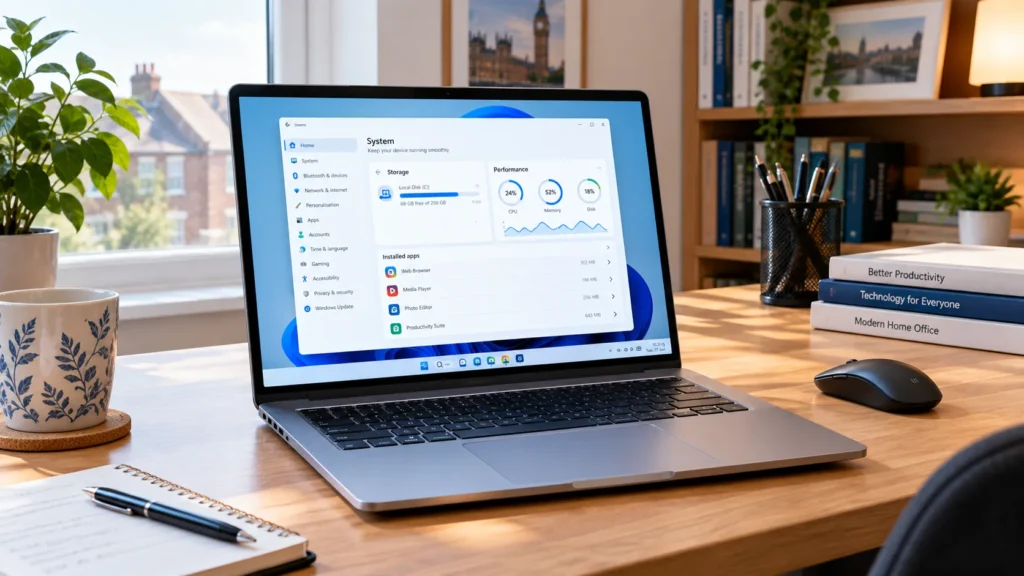
Open Windows Settings and review the Storage section. This can show how much space is being used by applications, temporary files, documents and other categories.
If your drive is almost full, remove files that you no longer need. Pay particular attention to large downloads, old installers and unused applications.
The Task Manager is another useful tool. Press Ctrl + Shift + Esc to open it and review CPU, memory and disk usage.
If one application is consuming unusually high resources, close it if it is not needed. However, avoid ending unfamiliar Windows system processes simply because they appear near the top of the list.
How to Speed Up a Slow PC
A slow computer can have several causes. Instead of making multiple changes at once, test one solution at a time.
Start by restarting the PC. Then check available storage and review applications that launch when Windows starts.
You can also uninstall programs you no longer use. Keeping unnecessary software installed can consume storage and, in some cases, add background services.
Windows updates should also be checked regularly. Updates can include security fixes, compatibility improvements and other system changes.
For older hardware, performance may also be limited by the amount of RAM, storage technology or processor capability. In such situations, software changes may have limited impact.
Useful Apps for Android, iPhone and Windows
Applications are one of the easiest ways to extend the functionality of a smartphone or computer. Productivity apps, photo editors, security tools, note-taking applications and AI services can all be useful depending on your needs.
However, installing an application simply because it is popular does not mean it is right for you.
How to Choose Useful Apps
Before installing an application, check:
- who developed it;
- recent reviews;
- update history;
- required permissions;
- storage requirements;
- privacy information;
- whether the application is still actively maintained.
For Android devices, the Google Play Store is the primary place to discover and install applications. iPhone users can use Apple’s App Store.
On Windows, download software from the developer’s official website or a trusted source whenever possible.
Avoid downloading modified applications from unknown websites. A free application can become expensive if it exposes your account or personal data.
Apps Not Working: Basic Troubleshooting
An application that suddenly stops working does not necessarily mean that your phone or computer is damaged.
Start by closing and reopening the application. Then check whether an update is available.
On Android, clearing an application’s cache can sometimes help with temporary problems. Be careful when selecting options that remove application data, as this may reset local settings or sign you out.
On Windows, restarting the application or PC can resolve temporary issues. If the problem began immediately after an update, check the application’s official support information for known problems.
If nothing works, uninstalling and reinstalling the application may help, but back up important information first.
Smart TV Setup and Troubleshooting
Smart TVs combine traditional television viewing with Internet-connected services. Devices from Samsung, LG and other manufacturers can provide access to streaming platforms, applications and connected-home features.
However, Smart TV problems are common enough that basic troubleshooting is worth understanding.
Smart TV Not Connecting to Wi-Fi
If your Smart TV cannot connect to Wi-Fi, first check whether other devices in the home are working.
If your smartphone and laptop are connected normally, restart the TV and try connecting again.
If every device has lost Internet access, the issue may be related to the router or broadband service rather than the television itself.
You can also move the router closer to the television if the signal is weak, although using a wired Ethernet connection may provide a more stable connection when available.
How to Set Up a Smart TV
During the initial setup, connect the television to your home network and install available system updates.
If you use streaming applications, sign in only through the official application or platform. Avoid entering passwords through unfamiliar links displayed in messages or advertisements.
Keep the television’s software updated when updates are provided by the manufacturer.
Connect Your Phone to a TV
One of the most useful modern features is the ability to display smartphone content on a larger television screen.

Mirror Android or iPhone to a Smart TV
Depending on the device and television, you may be able to use screen mirroring, casting or another wireless display feature.
For many setups, both devices need to be connected to the same Wi-Fi network.
Android phones may provide features such as screen casting or manufacturer-specific screen sharing. iPhones can use compatible AirPlay devices.
Google TV, Android TV and Chromecast-compatible televisions can also support compatible casting features.
If the TV does not appear on your phone, restart both devices and verify that they are connected to the same network.
Broadband and Wi-Fi Tips for UK Homes
Reliable broadband is important for streaming, remote work, online learning and connected devices.
The UK broadband market includes different technologies, including fibre broadband and full-fibre connections. However, the Internet connection entering your home and the Wi-Fi signal inside your home are not exactly the same thing.
Broadband Speed vs Wi-Fi Speed
Your broadband service may provide a particular connection speed, but the speed measured on a phone over Wi-Fi can be different.
Distance from the router, walls, interference, network congestion and the capabilities of the device can all affect wireless performance.
For an accurate test, try running a broadband speed test on a device connected close to the router. If possible, compare Wi-Fi results with an Ethernet connection.
This can help determine whether the issue is with the broadband service or the wireless network inside your home.
How to Improve Wi-Fi Signal
Place the router in an open and reasonably central location. Avoid hiding it inside cupboards or placing it directly behind large objects.
If your home is large or has thick walls, you may need additional networking equipment such as a mesh Wi-Fi system.
Before purchasing new hardware, check whether simply repositioning the router improves coverage.
Router Settings and Home Network Problems
Modern routers provide settings for wireless networks, connected devices and security.
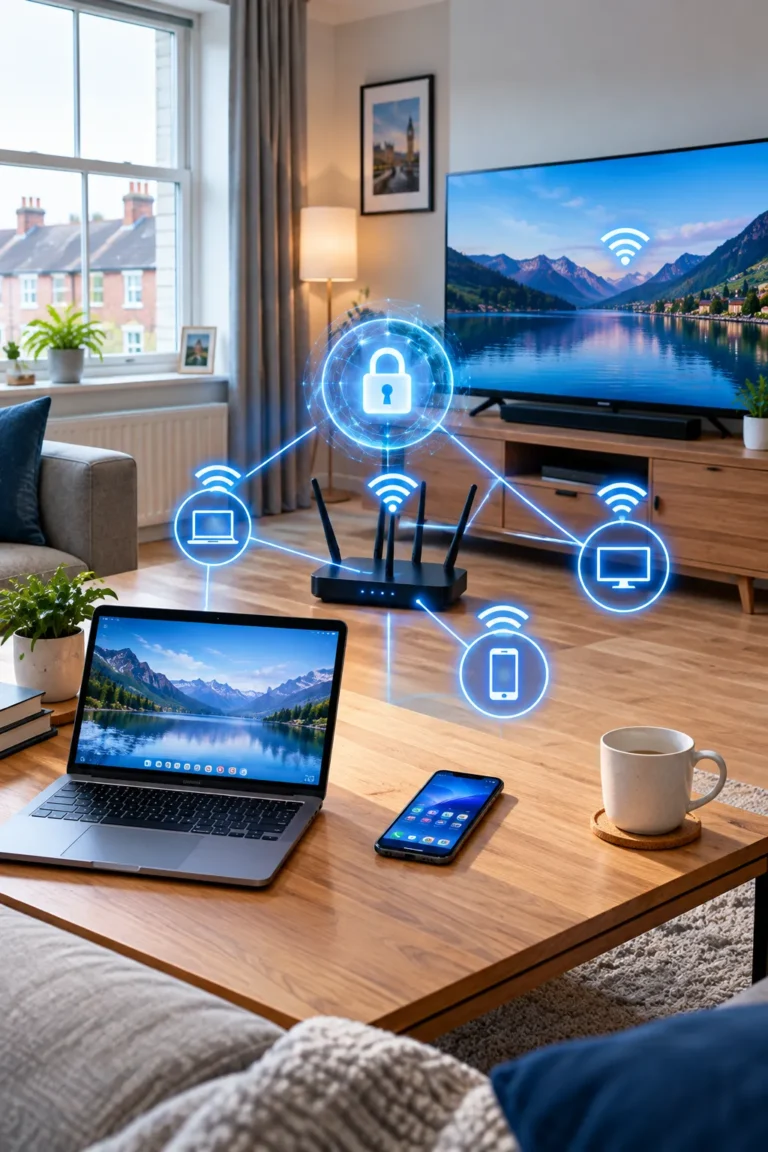
Use a strong Wi-Fi password and avoid sharing it unnecessarily. Check the list of connected devices from time to time so you can identify anything unfamiliar.
If Wi-Fi suddenly stops working, restart the router and wait for it to reconnect fully.
If the problem continues across multiple devices, check your broadband provider’s service information. A local outage or maintenance issue may be responsible.
Cybersecurity and Online Privacy
Security should be part of everyday technology use, not something considered only after an account has been compromised.
Protect Your Online Accounts
Use a unique password for important accounts. A password manager can help generate and store different passwords without requiring you to memorise every one.
Enable two-factor authentication whenever a service supports it.
Review account recovery information and connected devices regularly. If you notice an unfamiliar login, change the password and review the account’s security settings.
How to Spot a Phishing Scam
Phishing messages often create urgency. They may claim that an account is about to be closed, a payment has failed or a parcel cannot be delivered.
Do not click immediately.
Instead, open the company’s official website or application directly and check whether the message is genuine.
Never share a one-time verification code with someone who contacts you unexpectedly. Banks, technology companies and other legitimate services have specific procedures for authentication, but you should always verify unexpected requests through official channels.
Protecting Your Phone From Malware
Only install applications from trusted sources whenever possible. Keep Android, iOS and applications updated.
Do not ignore unusual behaviour. Unexpected advertisements, unexplained battery drain, unfamiliar applications or repeated redirects can be reasons to investigate the device.
Avoid downloading pirated applications, modified APK files or software from suspicious websites.
Security software can be useful in some situations, but safe browsing habits, software updates and careful application installation remain important parts of digital security.
Mobile Data and 5G in the UK
Mobile data allows smartphones to remain connected when Wi-Fi is unavailable. UK users can access different mobile networks and technologies depending on their location, provider and device.
5G can provide higher speeds and lower latency in suitable areas, but the real-world experience depends on coverage, network capacity, device compatibility and local conditions.
Mobile Data Not Working
If mobile data stops working, check that mobile data is enabled in the phone settings.
Then check the network indicator. If the signal is weak, move to a different location and test again.
Restart the phone if necessary. If the problem continues, check whether there is a network outage or whether your account, SIM card or eSIM requires attention.
Avoid changing advanced network settings without knowing their purpose.
Bluetooth and Connected Devices
Bluetooth is commonly used for wireless headphones, speakers, keyboards, watches and other accessories.
If Bluetooth is not connecting, turn Bluetooth off and on again. Make sure the accessory has enough battery and is not already connected to another device.
If necessary, remove the existing pairing and connect the accessory again.
Keeping devices relatively close during pairing can also reduce connection problems.
Building Better Technology Habits
The most useful technology tips are often simple habits repeated regularly.
Keep your devices updated, remove applications you no longer use, maintain enough free storage and protect important accounts with strong authentication.
Do not immediately reset a device when a problem appears. First identify what changed. Did the problem begin after an update, a new application, a network change or a hardware connection?
This basic troubleshooting mindset can prevent unnecessary resets and data loss.
Tech on Dicas UK is designed around this practical approach: understand the problem first, then apply the simplest appropriate solution.
Tech on Dicas UK: AI, ChatGPT, Privacy, Chromecast and Everyday Tech Solutions
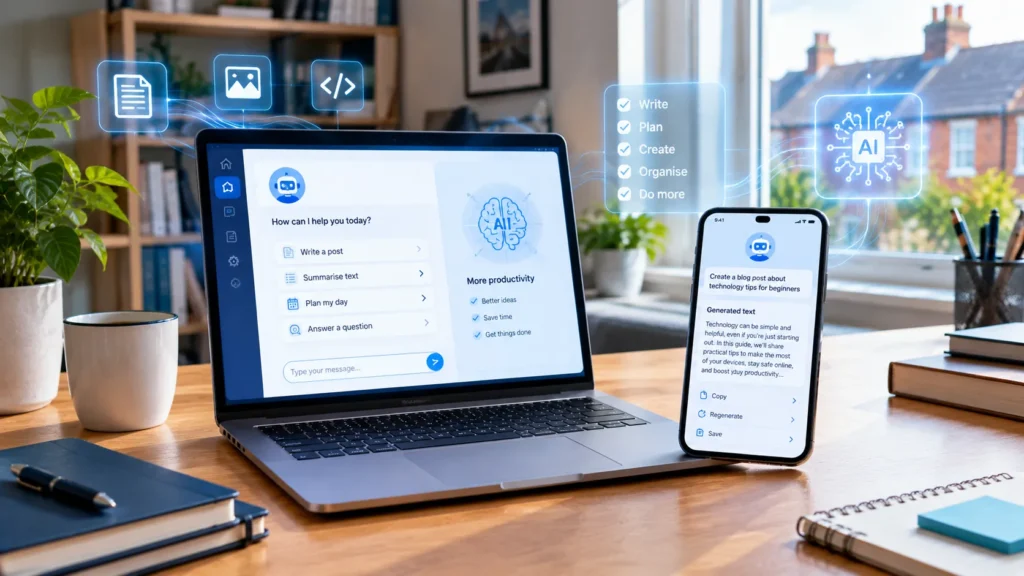
Technology continues to change quickly, and artificial intelligence is now becoming part of everyday digital life. Smartphones can use AI-powered features, applications can automate repetitive tasks, and services such as ChatGPT can help users write, research, organise information and learn new subjects.
At the same time, connected devices create new questions about privacy, security and troubleshooting. People want to know how to use AI safely, protect their personal data, connect their phone to a television and solve common problems without immediately replacing their device.
This final section of tech on dicas uk brings these topics together. The aim is not simply to introduce new technology, but to explain how people can use it practically and responsibly.
AI Tools: Practical Uses for Everyday Technology
Artificial intelligence is no longer limited to specialist software. AI tools are now available through websites, smartphone applications, productivity platforms and other digital services.
What Can AI Help You With?
AI can be useful for a wide range of everyday tasks, including:
- generating ideas;
- summarising information;
- drafting emails;
- improving written text;
- translating content;
- creating study notes;
- organising information;
- analysing text;
- generating images;
- preparing lists and outlines.
The usefulness of an AI tool depends heavily on the quality of the instructions provided to it.
For example, instead of asking an AI assistant to “write something about smartphones”, provide a clear purpose, audience and format. You could specify that you need a beginner-friendly explanation, a numbered tutorial or a short comparison.
This makes the result easier to review and adapt.
ChatGPT Tips for Beginners
ChatGPT can be used for writing, brainstorming, learning and many other everyday tasks.
How to Use ChatGPT Effectively
Start with a clear instruction. Explain what you want, provide relevant context and describe the desired format.
For example, if you want to understand a technical problem, explain the device, operating system and symptoms. If you are asking for writing help, provide the original text and explain the tone you want.
You can also ask ChatGPT to organise information into headings, bullet points or tables.
However, AI-generated information should not automatically be treated as verified fact. Important information should be checked against reliable sources, particularly when it involves financial decisions, legal matters, medical information or account security.
Do not enter passwords, banking credentials, private authentication codes or other highly sensitive information into an AI conversation.
AI Apps for Work and Study
Students can use AI tools to brainstorm topics, simplify difficult concepts or organise study plans. Professionals may use them to prepare drafts, summarise documents or generate ideas.
AI should support your own judgement rather than replace it. Always review generated content before submitting, publishing or relying on it.
The same approach applies to AI image generators and AI writing tools. Check the output for accuracy, unwanted details and copyright or usage considerations before using it commercially.
Online Privacy: Take Control of Your Digital Information
Privacy has become an important part of everyday technology use. Smartphones, browsers, applications and online services may handle different types of personal information.
Users should regularly review what information they share and which applications have access to it.
Protect Personal Data Online
Start by using strong, unique passwords for important accounts. Enable two-factor authentication wherever it is available.
Review privacy and security settings on your smartphone, browser and major online accounts.
Pay particular attention to permissions involving:
- location;
- camera;
- microphone;
- contacts;
- photographs;
- files;
- notifications.
An application should have a legitimate reason for requesting access to sensitive features.
You should also be careful when connecting to unfamiliar public Wi-Fi networks. Avoid performing highly sensitive activities on unsecured networks when a safer connection is available.
How to Protect Your Phone From Hackers
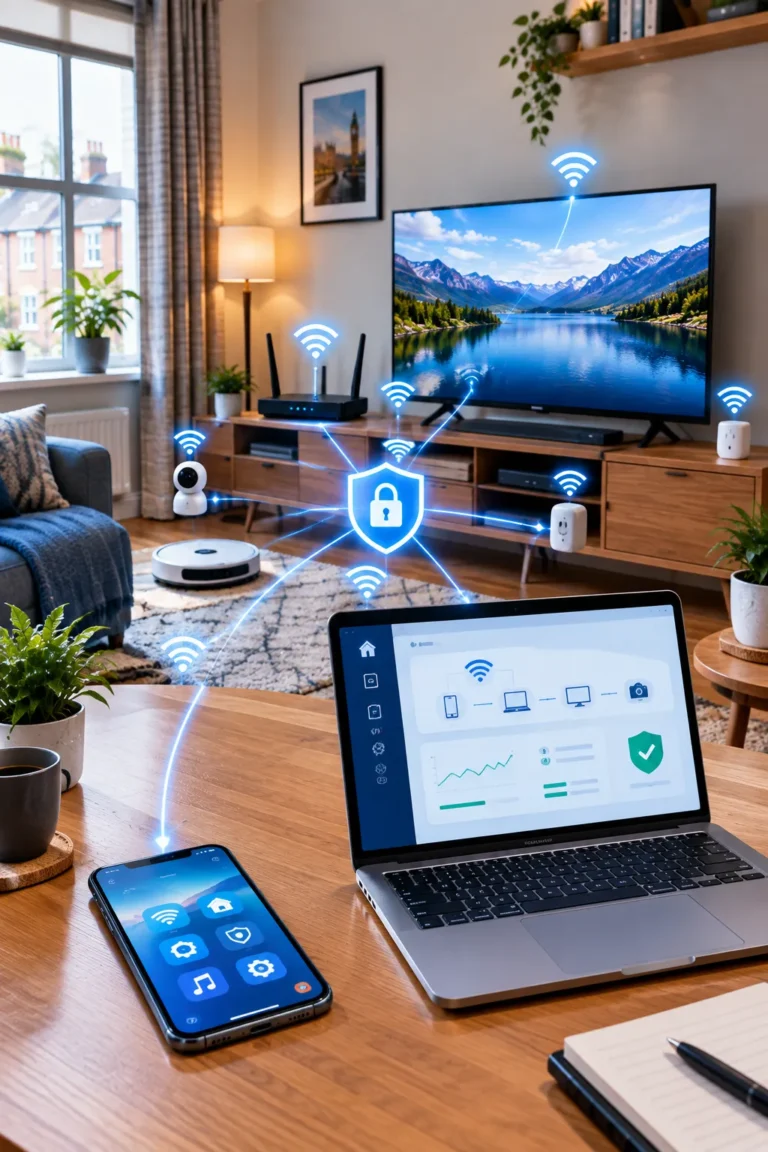
There is no single setting that makes a smartphone completely secure. Good security comes from several layers of protection.
Keep your operating system and applications updated. Use a screen lock and avoid sharing authentication codes.
Download applications from trusted sources and remove software you no longer need.
If you receive an unexpected message asking you to click a link or provide account information, stop and verify the request independently.
Phishing attacks often depend on urgency. A message may claim that your account has been locked or that an immediate payment is required.
Instead of clicking the supplied link, open the official application or website directly.
Chromecast, Google TV and Android TV
Streaming and casting have changed the way people use televisions. Chromecast-compatible devices, Google TV and Android TV can connect smartphones, applications and television screens.
How to Connect a Phone to a TV
First, check whether your television supports casting or screen mirroring.
For wireless casting, the smartphone and television normally need to be connected to the same Wi-Fi network.
Open a compatible application on your phone and look for the casting option. Select the available television or Chromecast device.
If nothing appears, check the following:
- Confirm that both devices use the same Wi-Fi network.
- Restart the phone.
- Restart the TV or Chromecast device.
- Check whether the application is updated.
- Make sure the TV is connected to the Internet.
- Check whether your router has device-isolation settings enabled.
For iPhone users, compatible televisions and devices may support Apple’s AirPlay technology. Android users may have additional casting or screen-mirroring features depending on their handset.

HDMI Troubleshooting
If you are connecting a laptop, streaming device or game console to a television with HDMI, check that the cable is firmly connected at both ends.
Select the correct HDMI input on the television.
If there is no picture, try another HDMI port or compatible cable. If possible, test the device with another display to determine whether the problem is related to the source device or television.
Troubleshooting: A Simple Method for Common Problems
When a device stops working, it is tempting to immediately reset it. In many situations, that is unnecessary.
A better approach is to identify the problem first.
Phone Not Charging
Try another compatible charging cable and power adapter.
Check the charging port for visible debris, but never insert sharp metal objects into it.
If the phone displays a moisture warning, follow the manufacturer's guidance and avoid forcing the charging connection.
Persistent charging problems may indicate a damaged cable, port or battery and may require professional inspection.
Smart TV Not Working
Restart the TV and check its network connection.
If applications are not opening, check for software updates and verify whether other Internet-connected devices are working.
Avoid performing a factory reset until you have exhausted simpler troubleshooting steps, because a reset can remove accounts, preferences and installed applications.
Phone Not Working
If your phone becomes unresponsive, try a normal restart. If the screen does not respond, use the manufacturer's recommended force-restart procedure.
Check whether the battery is charged and whether the device becomes unusually hot.
If the issue started after installing an application, investigate that application first.
Wi-Fi Not Working
Check another device on the same network.
If nothing connects, restart the router and check your broadband service.
If only one device has a problem, forget the Wi-Fi network on that device and reconnect using the correct password.
PC Running Slowly
Check storage space, background applications and startup programs.
Use Windows tools such as Task Manager and Storage settings to identify possible causes.
If the PC remains slow despite software maintenance, hardware limitations may be responsible.
Mobile Signal and 5G Troubleshooting
Poor mobile signal can be frustrating, especially when travelling or working away from a reliable Wi-Fi connection.
If the signal is weak, move to a different location and check whether the connection improves.
Buildings, underground locations and remote areas can affect mobile coverage.
If mobile data suddenly stops working, check the mobile data setting and restart the phone.
For persistent problems, check your mobile network provider’s service information and account status.
Building a Safer and More Reliable Digital Routine
Good technology habits do not require advanced technical knowledge.
Keep devices updated. Remove applications you do not use. Maintain sufficient storage. Use strong passwords and enable additional account protection.
Back up important photographs and documents regularly.
Before troubleshooting a serious problem, ask yourself what changed. Did you install an application? Change a setting? Update the operating system? Move to a different network?
This question can provide an important clue.
Tech on Dicas UK follows this practical approach because troubleshooting is easier when you understand the likely cause instead of changing several settings at once.
Frequently Asked Questions
Restart the phone, remove unused applications, free up storage and install available system and application updates. Also check whether a particular application is consuming excessive resources.
Remove unnecessary videos, downloads, duplicate files and applications you no longer use. Review the storage settings to identify the largest categories before deleting anything.
To update Android, open Settings on your phone and go to System > Software Update or System Update. On some Samsung phones, you may find it under Settings > Software update > Download and install.
Before updating, connect your phone to Wi-Fi, make sure the battery has enough charge, and keep some free storage available. If an update is available, follow the on-screen instructions to download and install it.
To improve Wi-Fi speed, start by restarting your router and placing it in an open, central location away from walls and electronic devices. Make sure your router firmware is up to date and use the 5 GHz band when you are close to the router for faster speeds.
You can also disconnect devices you are not using, reduce interference from nearby networks, and check whether your internet plan provides enough speed for all connected devices. If the signal is weak in certain rooms, consider using a Wi-Fi extender or mesh Wi-Fi system.
4G and 5G are different generations of mobile network technology. 5G is generally faster than 4G, with lower latency and the ability to handle more connected devices at the same time.
4G is widely available and works well for browsing, social media, video calls, and streaming. 5G can provide much higher speeds and faster response times, which can be useful for high-quality streaming, online gaming, large downloads, and other data-heavy tasks.
To protect your phone from hackers, keep your operating system and apps updated and download apps only from trusted sources such as the Google Play Store or Apple App Store. Use a strong screen lock, preferably a PIN or password, and enable two-factor authentication (2FA) for important accounts.
Avoid clicking suspicious links in emails, messages, or social media, especially if they ask for passwords or personal information. Be careful when connecting to unknown public Wi-Fi networks, and review app permissions regularly.
You should also enable your phone's built-in security features and use a reputable security app if needed. Regularly back up important data so you can recover your information if your phone is lost, stolen, or compromised.
To free up storage, start by checking Settings > Storage to see what is taking up the most space. Delete apps you no longer use and remove unnecessary photos, videos, downloads, and large files.
You can also clear temporary app cache from your phone's storage settings. If you use WhatsApp, check WhatsApp > Settings > Storage and Data > Manage Storage and remove large or unwanted media files.
For photos and videos you want to keep, back them up to a trusted cloud service or transfer them to a computer before deleting them from your phone. Finally, empty the Trash/Recently Deleted folder, as deleted files may continue using storage until they are permanently removed.
Final Thoughts
Technology is most useful when it solves real problems rather than creating unnecessary complexity. A slow smartphone, unstable Wi-Fi connection, full storage or unresponsive application can often be investigated through a few straightforward checks.
From Android and iPhone settings to Windows 11, Smart TVs, broadband, mobile networks and AI tools, the key is to understand what the device is doing before changing important settings.
The wider goal of tech on dicas uk is to make technology advice easier to understand and easier to apply. Whether someone is looking for smartphone tips, Android guides, Wi-Fi troubleshooting, Smart TV setup or practical ChatGPT advice, clear information can make everyday technology much less frustrating.
As digital services continue to develop, users will also need to pay attention to cybersecurity and privacy. Strong passwords, software updates, careful application installation and sensible online habits remain important regardless of which device or platform you use.
Technology will keep changing, but the fundamentals remain the same: understand your device, protect your data, troubleshoot problems step by step and use digital tools in a way that genuinely helps you.